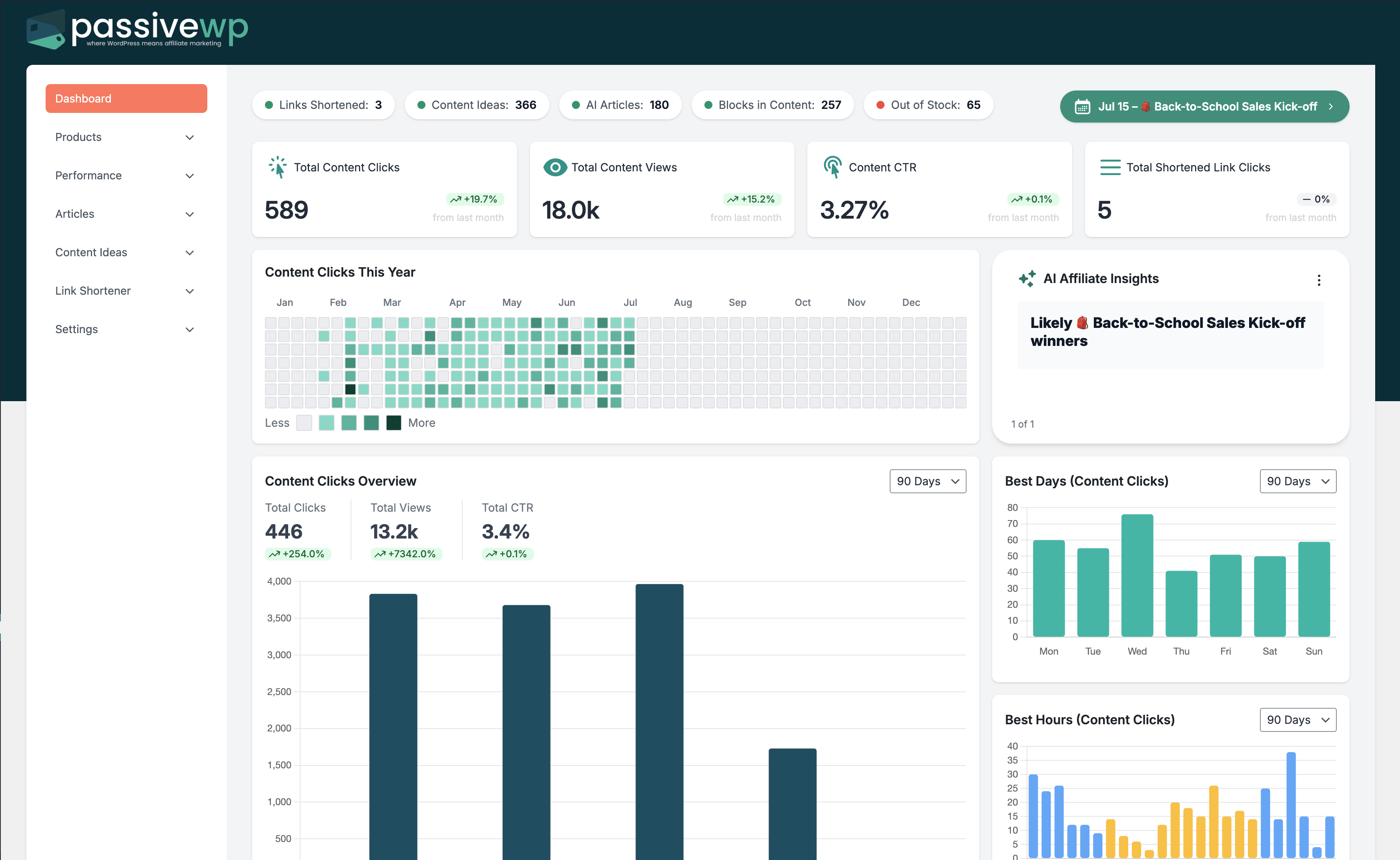
Click volume spikes without matching conversions or engagement.
Where to Check in PassiveWP
WordPress Admin -> PassiveWP -> Branded Links -> My Links
Step-by-Step Fix Walkthrough
Fix Step 1: Enable/verify bot filtering settings.
Go here WordPress Admin→PassiveWP→Branded Links→My Links
Do this In WordPress Admin→PassiveWP→Branded Links→My Links, do this in order: open the relevant panel, find the control related to "Enable/verify bot filtering settings.", apply one change, click Save/Run, then reload once to confirm it stuck.
Confirm Private-window click tests should route correctly and keep required attribution params.
Fix Step 2: Lower velocity threshold gradually and monitor impact.
Go here WordPress Admin→PassiveWP→Branded Links→My Links
Do this In WordPress Admin→PassiveWP→Branded Links→My Links, do this in order: open the relevant panel, find the control related to "Lower velocity threshold gradually and monitor impact.", apply one change, click Save/Run, then reload once to confirm it stuck.
Confirm Private-window click tests should route correctly and keep required attribution params.
Fix Step 3: Segment traffic source performance to isolate poor quality channels.
Go here WordPress Admin→PassiveWP→Branded Links→My Links
Do this In WordPress Admin→PassiveWP→Branded Links→My Links, do this in order: open the relevant panel, find the control related to "Segment traffic source performance to isolate poor quality channels.", apply one change, click Save/Run, then reload once to confirm it stuck.
Confirm Private-window click tests should route correctly and keep required attribution params.
Fix Step 4: Block or reduce spend on suspicious sources.
Go here WordPress Admin→PassiveWP→Branded Links→My Links
Do this In WordPress Admin→PassiveWP→Branded Links→My Links, do this in order: open the relevant panel, find the control related to "Block or reduce spend on suspicious sources.", apply one change, click Save/Run, then reload once to confirm it stuck.
Confirm Private-window click tests should route correctly and keep required attribution params.
Most Common Causes
- Bot/referrer spam hitting public links.
- Velocity thresholds too relaxed for your traffic profile.
- Paid traffic quality issues from one source.
How to Prevent It Next Time
- Set weekly fraud-quality review routine.
- Use source-level controls before scaling ad budgets.
- Track conversion quality, not just click quantity.
When to Contact Support
- You completed every fix step and still get the same error.
- The issue impacts revenue-critical pages or high-volume campaigns.
- You can share timestamps, affected link/product IDs, and screenshots of the exact error state.