Admin or frontend slows down after scaling products, links, and automations.
Where to Check in PassiveWP
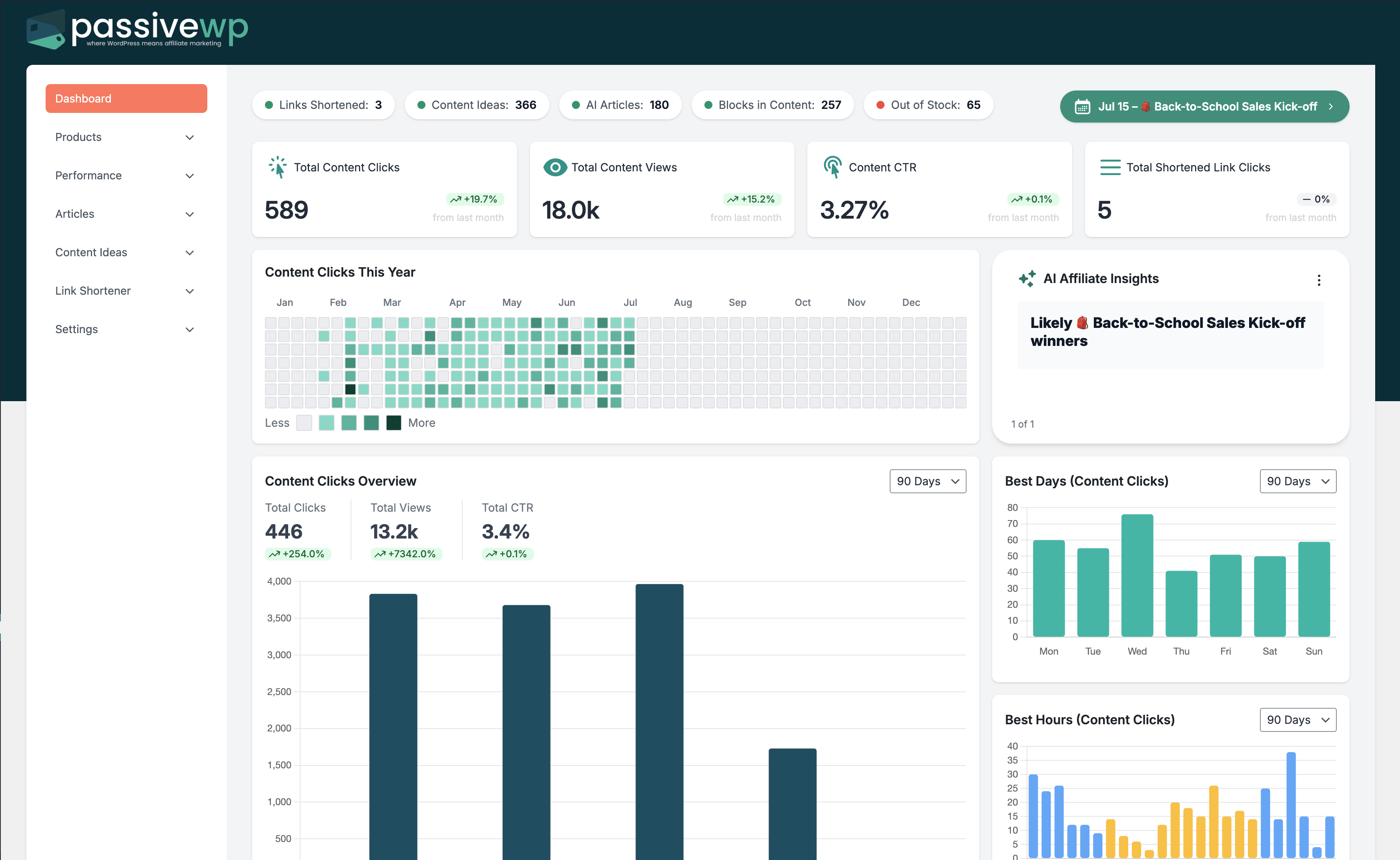
WordPress Admin -> PassiveWP
Step-by-Step Fix Walkthrough
Fix Step 1: Reduce batch size and stagger heavy operations.
Go here WordPress Admin→PassiveWP
Do this In WordPress Admin→PassiveWP, do this in order: open the relevant panel, find the control related to "Reduce batch size and stagger heavy operations.", apply one change, click Save/Run, then reload once to confirm it stuck.
Confirm No blocking error banner appears, and the next step is available.
Fix Step 2: Pause non-critical automations during major imports.
Go here WordPress Admin→PassiveWP
Do this In WordPress Admin→PassiveWP, run a small import/fetch first (1-5 items) so you can verify data quality before scaling up.
Confirm New rows should appear in the list and be editable.
Fix Step 3: Optimize hosting resources or scheduling windows.
Go here WordPress Admin→PassiveWP
Do this In WordPress Admin→PassiveWP, do this in order: open the relevant panel, find the control related to "Optimize hosting resources or scheduling windows.", apply one change, click Save/Run, then reload once to confirm it stuck.
Confirm No blocking error banner appears, and the next step is available.
Fix Step 4: Profile slow pages and focus on biggest bottlenecks first.
Go here WordPress Admin→PassiveWP
Do this In WordPress Admin→PassiveWP, do this in order: open the relevant panel, find the control related to "Profile slow pages and focus on biggest bottlenecks first.", apply one change, click Save/Run, then reload once to confirm it stuck.
Confirm No blocking error banner appears, and the next step is available.
Most Common Causes
- Too many concurrent background jobs.
- Heavy imports combined with live traffic peaks.
- Insufficient hosting resources for workload.
How to Prevent It Next Time
- Scale operations gradually.
- Prioritize revenue-critical tasks during peak periods.
- Review resource usage ahead of seasonal traffic spikes.
When to Contact Support
- You completed every fix step and still get the same error.
- The issue impacts revenue-critical pages or high-volume campaigns.
- You can share timestamps, affected link/product IDs, and screenshots of the exact error state.