Clicks or redirects behave inconsistently after cache/CDN changes.
Where to Check in PassiveWP
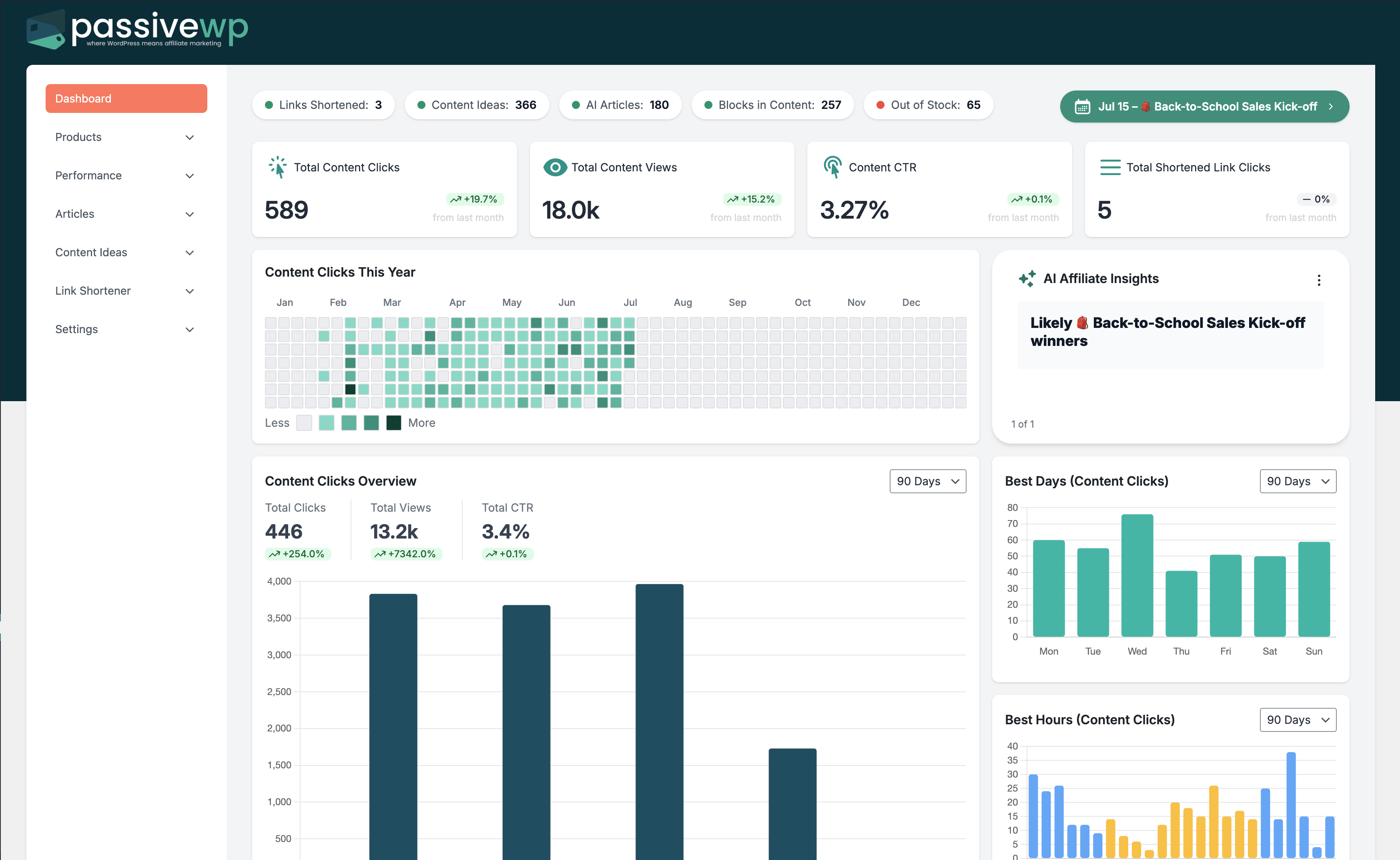
WordPress Admin -> PassiveWP
Step-by-Step Fix Walkthrough
Fix Step 1: Exclude branded link and tracking paths from full-page cache.
Go here WordPress Admin→PassiveWP
Do this In WordPress Admin→PassiveWP, do this in order: open the relevant panel, find the control related to "Exclude branded link and tracking paths from full-page cache.", apply one change, click Save/Run, then reload once to confirm it stuck.
Confirm Test clicks should land on the expected destination with attribution parameters intact.
Fix Step 2: Purge CDN cache after major tracking config updates.
Go here WordPress Admin→PassiveWP
Do this In WordPress Admin→PassiveWP, do this in order: open the relevant panel, find the control related to "Purge CDN cache after major tracking config updates.", apply one change, click Save/Run, then reload once to confirm it stuck.
Confirm No blocking error banner appears, and the next step is available.
Fix Step 3: Verify query parameters survive end-to-end redirects.
Go here WordPress Admin→PassiveWP
Do this In WordPress Admin→PassiveWP, do this in order: open the relevant panel, find the control related to "Verify query parameters survive end-to-end redirects.", apply one change, click Save/Run, then reload once to confirm it stuck.
Confirm Test clicks should land on the expected destination with attribution parameters intact.
Fix Step 4: Retest using uncached/private sessions.
Go here WordPress Admin→PassiveWP
Do this Open WordPress Admin→PassiveWP, click the test/validate action in that screen, and wait for the result notice before continuing.
Confirm You should see a Connected/Success result with no red error notice.
Most Common Causes
- Aggressive caching of dynamic redirect/tracking paths.
- Cached pages serving stale scripts or link behavior.
- Edge rules rewriting query parameters.
How to Prevent It Next Time
- Document cache exclusions for monetization paths.
- Run click/conversion QA after CDN config changes.
- Avoid edge rewrites that mutate attribution params.
When to Contact Support
- You completed every fix step and still get the same error.
- The issue impacts revenue-critical pages or high-volume campaigns.
- You can share timestamps, affected link/product IDs, and screenshots of the exact error state.