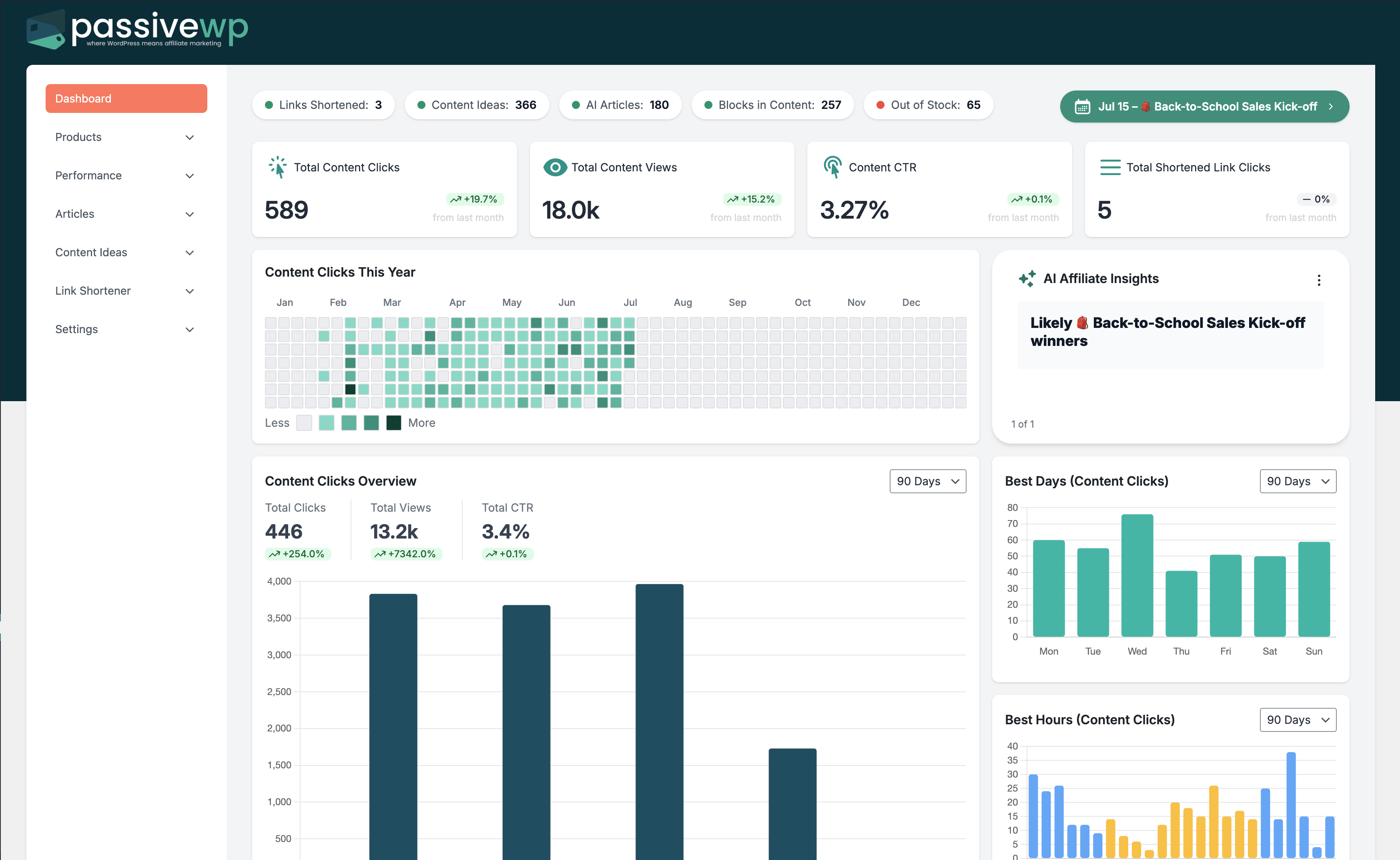
OpenAI spend rises while affiliate earnings stay flat.
Where to Check in PassiveWP
WordPress Admin -> PassiveWP -> Settings -> OpenAI
Step-by-Step Fix Walkthrough
Fix Step 1: Pause low-performing automation streams.
Go here WordPress Admin→PassiveWP→Settings→OpenAI
Do this In WordPress Admin→PassiveWP→Settings→OpenAI, do this in order: open the relevant panel, find the control related to "Pause low-performing automation streams.", apply one change, click Save/Run, then reload once to confirm it stuck.
Confirm No blocking error banner appears, and the next step is available.
Fix Step 2: Shift budget to proven converting topics.
Go here WordPress Admin→PassiveWP→Settings→OpenAI
Do this In WordPress Admin→PassiveWP→Settings→OpenAI, do this in order: open the relevant panel, find the control related to "Shift budget to proven converting topics.", apply one change, click Save/Run, then reload once to confirm it stuck.
Confirm No blocking error banner appears, and the next step is available.
Fix Step 3: Use cheaper draft models and selective premium refinement.
Go here WordPress Admin→PassiveWP→Settings→OpenAI
Do this In WordPress Admin→PassiveWP→Settings→OpenAI, do this in order: open the relevant panel, find the control related to "Use cheaper draft models and selective premium refinement.", apply one change, click Save/Run, then reload once to confirm it stuck.
Confirm No blocking error banner appears, and the next step is available.
Fix Step 4: Track cost per converting article monthly.
Go here WordPress Admin→PassiveWP→Settings→OpenAI
Do this In WordPress Admin→PassiveWP→Settings→OpenAI, do this in order: open the relevant panel, find the control related to "Track cost per converting article monthly.", apply one change, click Save/Run, then reload once to confirm it stuck.
Confirm No blocking error banner appears, and the next step is available.
Most Common Causes
- High generation volume with low-quality targeting.
- No quality/ROI gate before scaling output.
- Too much drafting for low-intent topics.
How to Prevent It Next Time
- Set AI budget caps tied to revenue milestones.
- Review ROI before increasing generation volume.
- Prioritize refresh of proven pages over speculative content.
When to Contact Support
- You completed every fix step and still get the same error.
- The issue impacts revenue-critical pages or high-volume campaigns.
- You can share timestamps, affected link/product IDs, and screenshots of the exact error state.