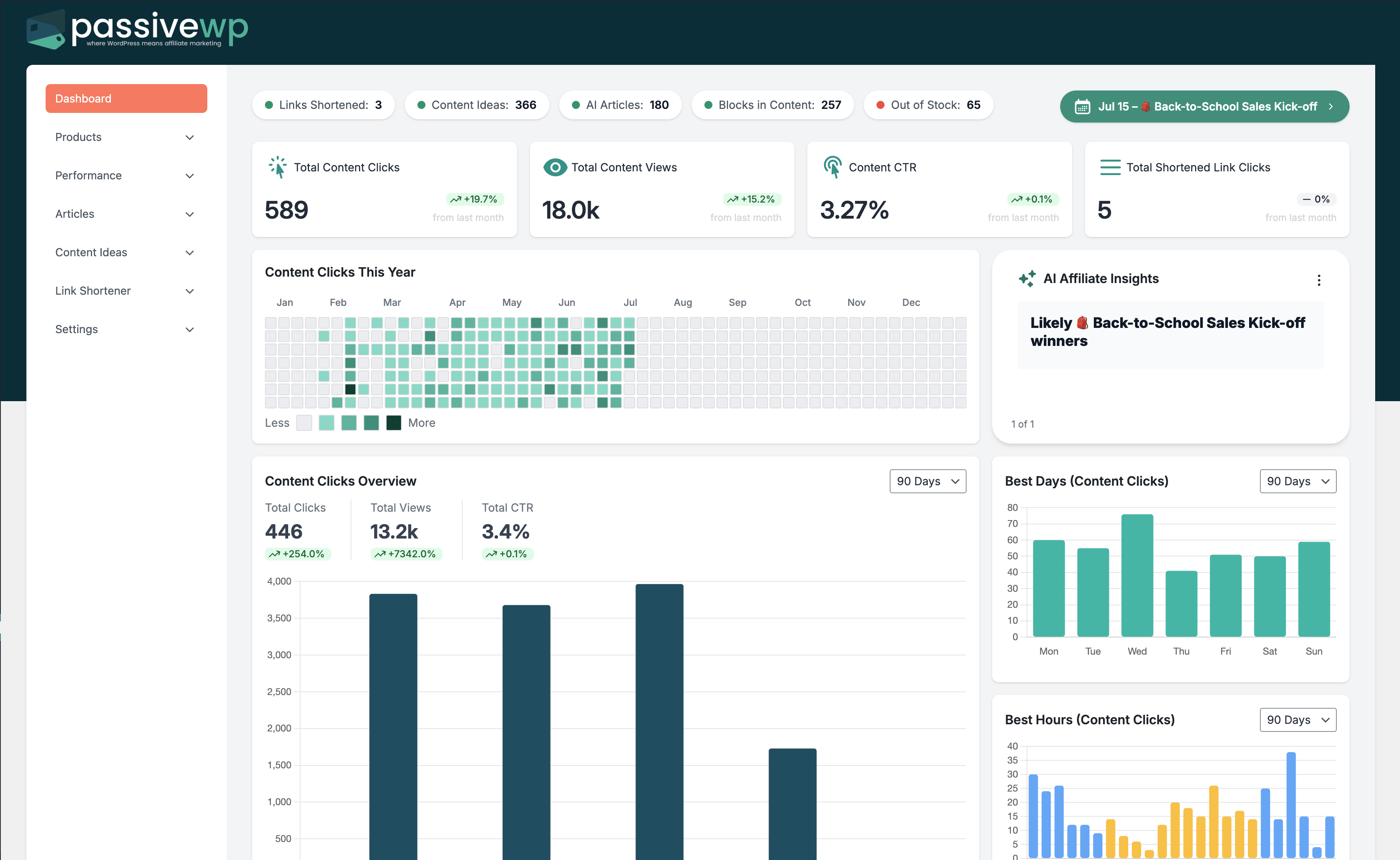
Clicks or conversions drop sharply with no obvious reason.
Where to Check in PassiveWP
WordPress Admin -> PassiveWP
Step-by-Step Fix Walkthrough
Fix Step 1: Check out-of-stock and stale product reports first.
Go here WordPress Admin→PassiveWP
Do this In WordPress Admin→PassiveWP, do this in order: open the relevant panel, find the control related to "Check out-of-stock and stale product reports first.", apply one change, click Save/Run, then reload once to confirm it stuck.
Confirm No blocking error banner appears, and the next step is available.
Fix Step 2: Audit top branded links for routing or destination changes.
Go here WordPress Admin→PassiveWP
Do this In WordPress Admin→PassiveWP, do this in order: open the relevant panel, find the control related to "Audit top branded links for routing or destination changes.", apply one change, click Save/Run, then reload once to confirm it stuck.
Confirm Test clicks should land on the expected destination with attribution parameters intact.
Fix Step 3: Validate click tracking and conversion pipeline end-to-end.
Go here WordPress Admin→PassiveWP
Do this Open WordPress Admin→PassiveWP, click the test/validate action in that screen, and wait for the result notice before continuing.
Confirm You should see a Connected/Success result with no red error notice.
Fix Step 4: Compare source-level traffic quality against prior baseline.
Go here WordPress Admin→PassiveWP
Do this Use WordPress Admin→PassiveWP to run generation for one item first, review the output manually, then continue with the remaining items.
Confirm Generation should complete without authentication, quota, or model errors.
Most Common Causes
- Out-of-stock products on top pages.
- Link destination or routing rule changes.
- Traffic source quality shift or tracking breakage.
How to Prevent It Next Time
- Keep weekly health check checklist.
- Use change logs for all campaign-impacting edits.
- Set alerts for major KPI deltas.
When to Contact Support
- You completed every fix step and still get the same error.
- The issue impacts revenue-critical pages or high-volume campaigns.
- You can share timestamps, affected link/product IDs, and screenshots of the exact error state.