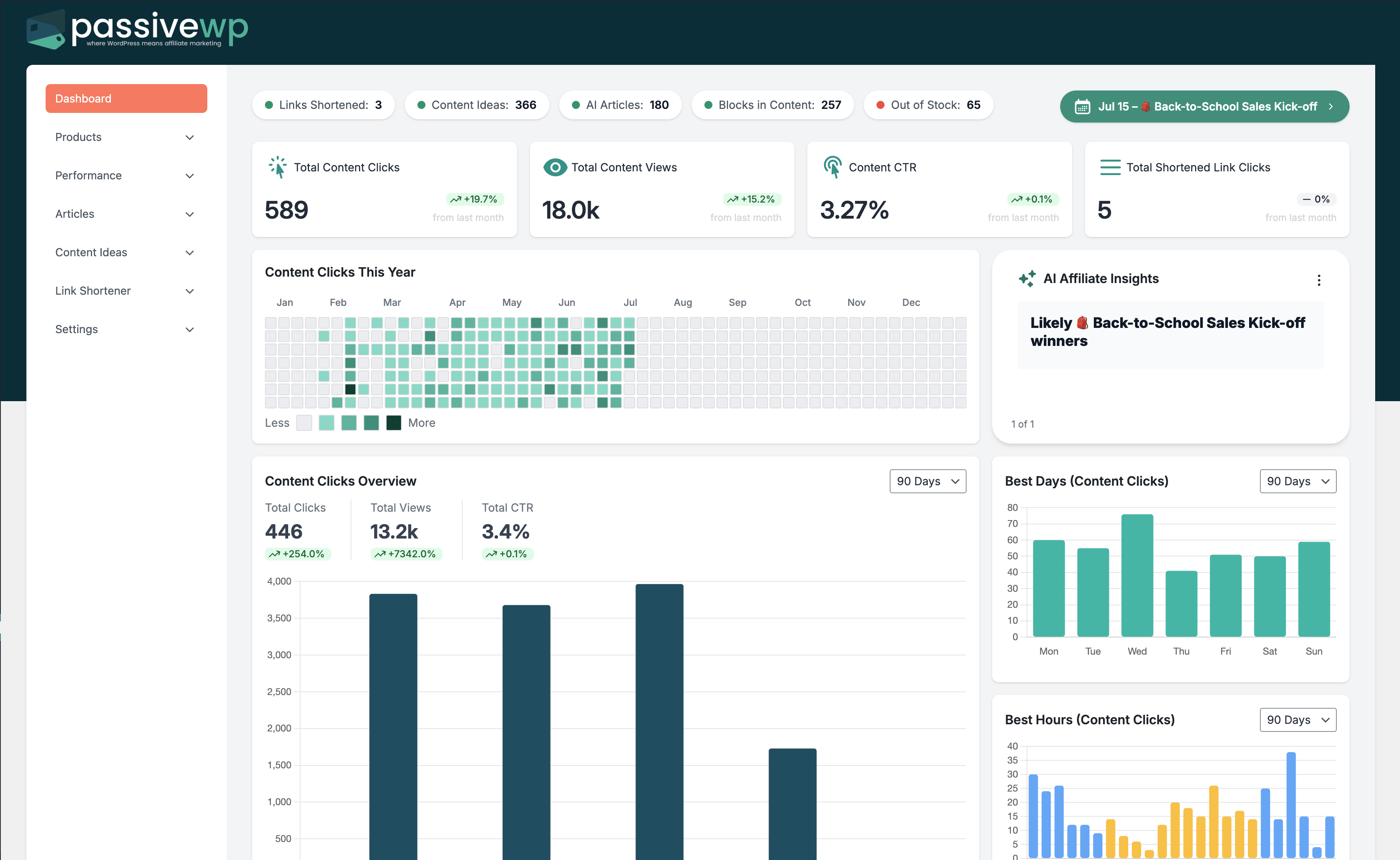
Scheduled reports appear enabled but inbox stays empty.
Where to Check in PassiveWP
WordPress Admin -> PassiveWP
Step-by-Step Fix Walkthrough
Fix Step 1: Verify recipient addresses and report cadence settings.
Go here WordPress Admin→PassiveWP
Do this In WordPress Admin→PassiveWP, do this in order: open the relevant panel, find the control related to "Verify recipient addresses and report cadence settings.", apply one change, click Save/Run, then reload once to confirm it stuck.
Confirm New rows should appear in the list and be editable.
Fix Step 2: Send a test email through your site mail setup.
Go here WordPress Admin→PassiveWP
Do this Open WordPress Admin→PassiveWP, click the test/validate action in that screen, and wait for the result notice before continuing.
Confirm You should see a Connected/Success result with no red error notice.
Fix Step 3: Check spam/quarantine filters and whitelist sender.
Go here WordPress Admin→PassiveWP
Do this In WordPress Admin→PassiveWP, do this in order: open the relevant panel, find the control related to "Check spam/quarantine filters and whitelist sender.", apply one change, click Save/Run, then reload once to confirm it stuck.
Confirm No blocking error banner appears, and the next step is available.
Fix Step 4: Use an SMTP plugin/service if native delivery is unreliable.
Go here WordPress Admin→PassiveWP
Do this In WordPress Admin→PassiveWP, do this in order: open the relevant panel, find the control related to "Use an SMTP plugin/service if native delivery is unreliable.", apply one change, click Save/Run, then reload once to confirm it stuck.
Confirm No blocking error banner appears, and the next step is available.
Most Common Causes
- Email delivery setup issues in WordPress hosting stack.
- Reports not actually scheduled or recipients misconfigured.
- Messages landing in spam/promotions folders.
How to Prevent It Next Time
- Run monthly deliverability checks.
- Use team-shared inboxes for critical reports.
- Confirm post-update that report schedules remain active.
When to Contact Support
- You completed every fix step and still get the same error.
- The issue impacts revenue-critical pages or high-volume campaigns.
- You can share timestamps, affected link/product IDs, and screenshots of the exact error state.