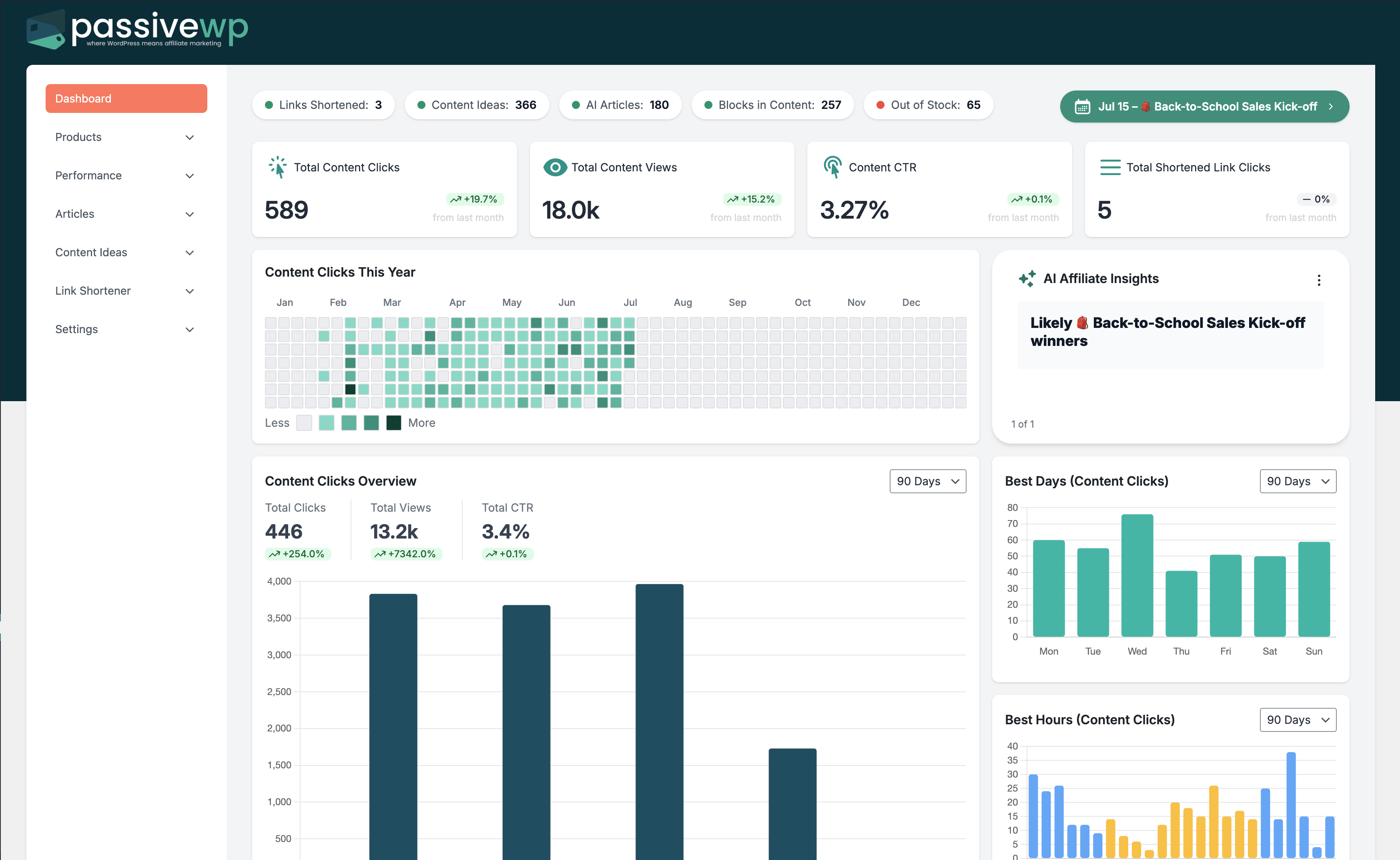
More products become unavailable than your team can replace.
Where to Check in PassiveWP
WordPress Admin -> PassiveWP -> Products -> Out of Stock
Step-by-Step Fix Walkthrough
Fix Step 1: Prioritize top-traffic pages and products first.
Go here WordPress Admin→PassiveWP→Products→Out of Stock
Do this In WordPress Admin→PassiveWP→Products→Out of Stock, sort/filter rows, replace the highest-impact dead offer first, save, then retest links on that article.
Confirm No blocking error banner appears, and the next step is available.
Fix Step 2: Create replacement pools for each high-value category.
Go here WordPress Admin→PassiveWP→Products→Out of Stock
Do this In WordPress Admin→PassiveWP→Products→Out of Stock, sort/filter rows, replace the highest-impact dead offer first, save, then retest links on that article.
Confirm No blocking error banner appears, and the next step is available.
Fix Step 3: Reduce low-value catalog sprawl.
Go here WordPress Admin→PassiveWP→Products→Out of Stock
Do this In WordPress Admin→PassiveWP→Products→Out of Stock, sort/filter rows, replace the highest-impact dead offer first, save, then retest links on that article.
Confirm No blocking error banner appears, and the next step is available.
Fix Step 4: Schedule weekly inventory maintenance sessions.
Go here WordPress Admin→PassiveWP→Products→Out of Stock
Do this In WordPress Admin→PassiveWP→Products→Out of Stock, sort/filter rows, replace the highest-impact dead offer first, save, then retest links on that article.
Confirm The article/post should show the correct status and visible metadata.
Most Common Causes
- Catalog too broad with low-maintenance capacity.
- No regular replacement workflow.
- Heavy reliance on volatile product categories.
How to Prevent It Next Time
- Maintain smaller, higher-quality catalogs.
- Use recurring stock audits.
- Build evergreen alternatives for volatile niches.
When to Contact Support
- You completed every fix step and still get the same error.
- The issue impacts revenue-critical pages or high-volume campaigns.
- You can share timestamps, affected link/product IDs, and screenshots of the exact error state.