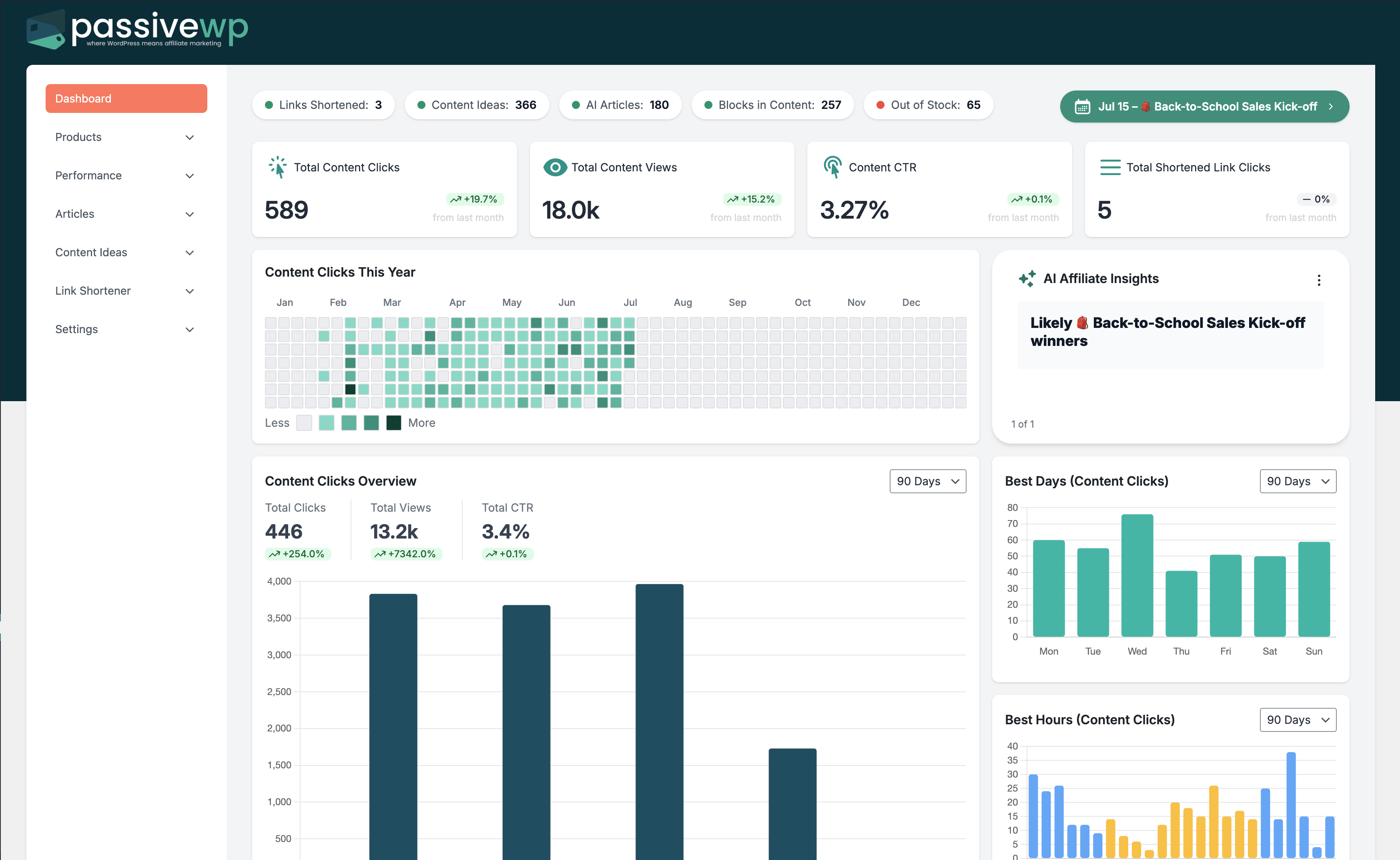
When you interpret metrics correctly, you can act on real profit levers faster.
When to Use This Guide
Use this when you need to import performance data, diagnose profit leaks, and turn insights into actions.
Before You Start
- You are logged into WordPress with an Administrator account.
- You can open PassiveWP -> Amazon Earnings.
- You have report files for the correct date range before importing.
Exact Menu Path
WordPress Admin -> PassiveWP -> Amazon Earnings -> Overview
Step-by-Step Walkthrough
Step 1: Review earnings trend by day, week, and month windows.
Go here WordPress Admin→PassiveWP→Amazon Earnings→Overview
Do this In Amazon Earnings, set date range first, then review cards/tables and open deeper views for anomalies.
Confirm Imported/report totals should align with the selected date window from your source file.
Step 2: Compare changes against major campaign or content updates.
Go here WordPress Admin→PassiveWP→Amazon Earnings→Overview
Do this In Amazon Earnings, set date range first, then review cards/tables and open deeper views for anomalies.
Confirm Imported/report totals should align with the selected date window from your source file.
Step 3: Identify top and underperforming periods.
Go here WordPress Admin→PassiveWP→Amazon Earnings→Overview
Do this In Amazon Earnings, set date range first, then review cards/tables and open deeper views for anomalies.
Confirm Imported/report totals should align with the selected date window from your source file.
Step 4: Tie revenue changes to click quality and inventory health.
Go here WordPress Admin→PassiveWP→Amazon Earnings→Overview
Do this In Amazon Earnings, set date range first, then review cards/tables and open deeper views for anomalies.
Confirm Imported/report totals should align with the selected date window from your source file.
Quick Troubleshooting Checks
- Confirm report file type/date range matches what PassiveWP expects.
- Wait for processing jobs to finish before deleting/reimporting.
- Verify OpenAI key if AI insights features fail.
Common Mistakes to Avoid
- Uploading the wrong Amazon report type or file format.
- Comparing partial date ranges and assuming data is wrong.
- Ignoring delayed processing windows for larger imports.
Success Checklist
- CSV file type is correct and complete.
- Date range matches your reporting window.
- Imported totals are reconciled against source reports.
Pro Tips for Affiliate Marketers
- Use consistent weekly and monthly windows for trend clarity.
- Document large campaign changes to explain spikes and dips.
- Pair earnings trends with click-quality metrics.
If You Get Stuck
Open the matching troubleshooting article in this help center and repeat one step at a time instead of changing multiple settings at once.